
Introduction
In today’s fast-moving business environment, the finance and People Ops teams are under increasing pressure: faster month-ends, more frequent financial reviews, real-time insights, fewer manual data-entry hours. A key way to meet these demands is by automating as much bookkeeping as possible. That’s where the combination of bank feeds and bank rules in QuickBooks Online (QBO) makes a big difference.
In this article we’ll cover:
- What bank feeds and bank rules are (and why they matter)
- Common pain points businesses face with bookkeeping
- How you can use QBO’s bank feeds + rules to make your books essentially always on
- Real-world scenarios and implementation tips
- How the PeopleOps / finance partnership can leverage this for better outcomes
What are Bank Feeds and Bank Rules in QBO?
Bank Feeds
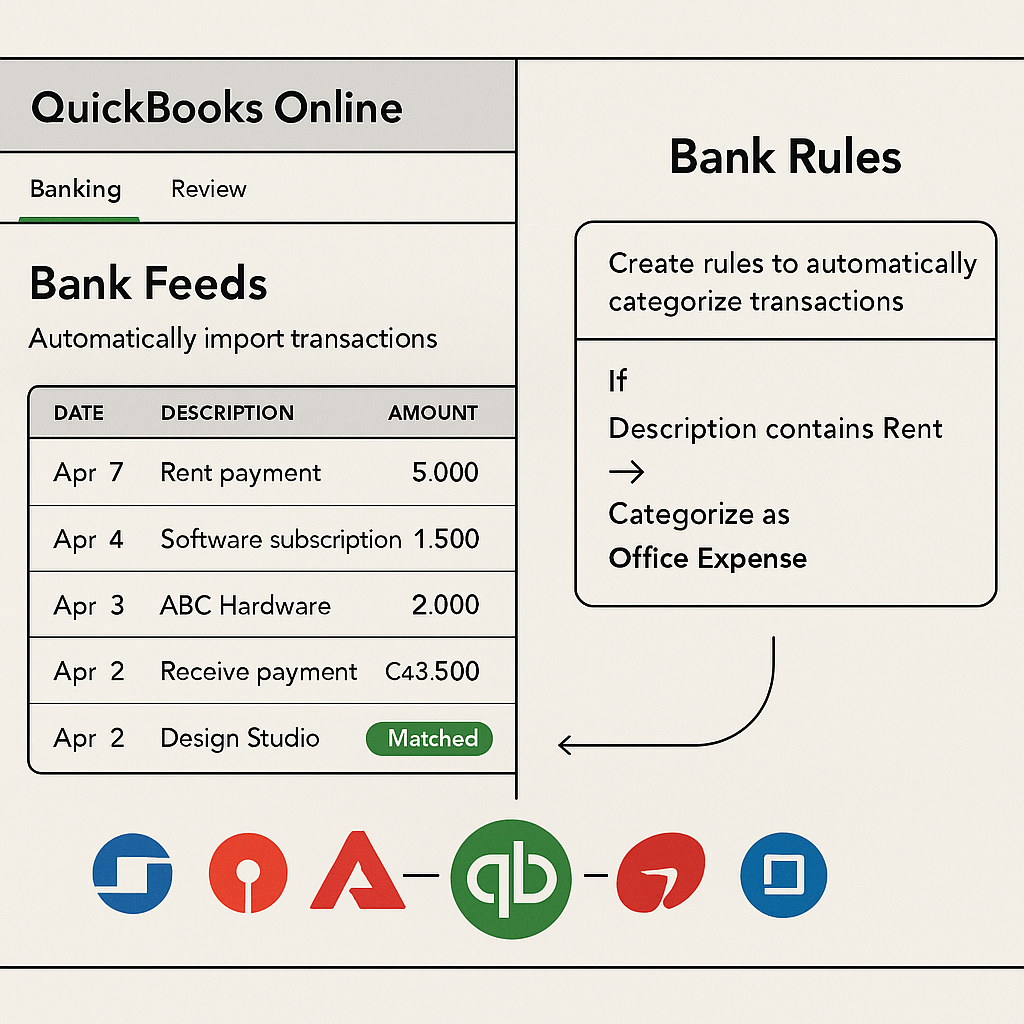
Bank feeds refer to the connection between your bank (or credit-card) account and QuickBooks Online, where transaction data flows automatically into QBO so you don’t have to enter every debit/credit manually. According to Business News Daily:
“The days of entering every transaction manually … are over.” Business News Daily
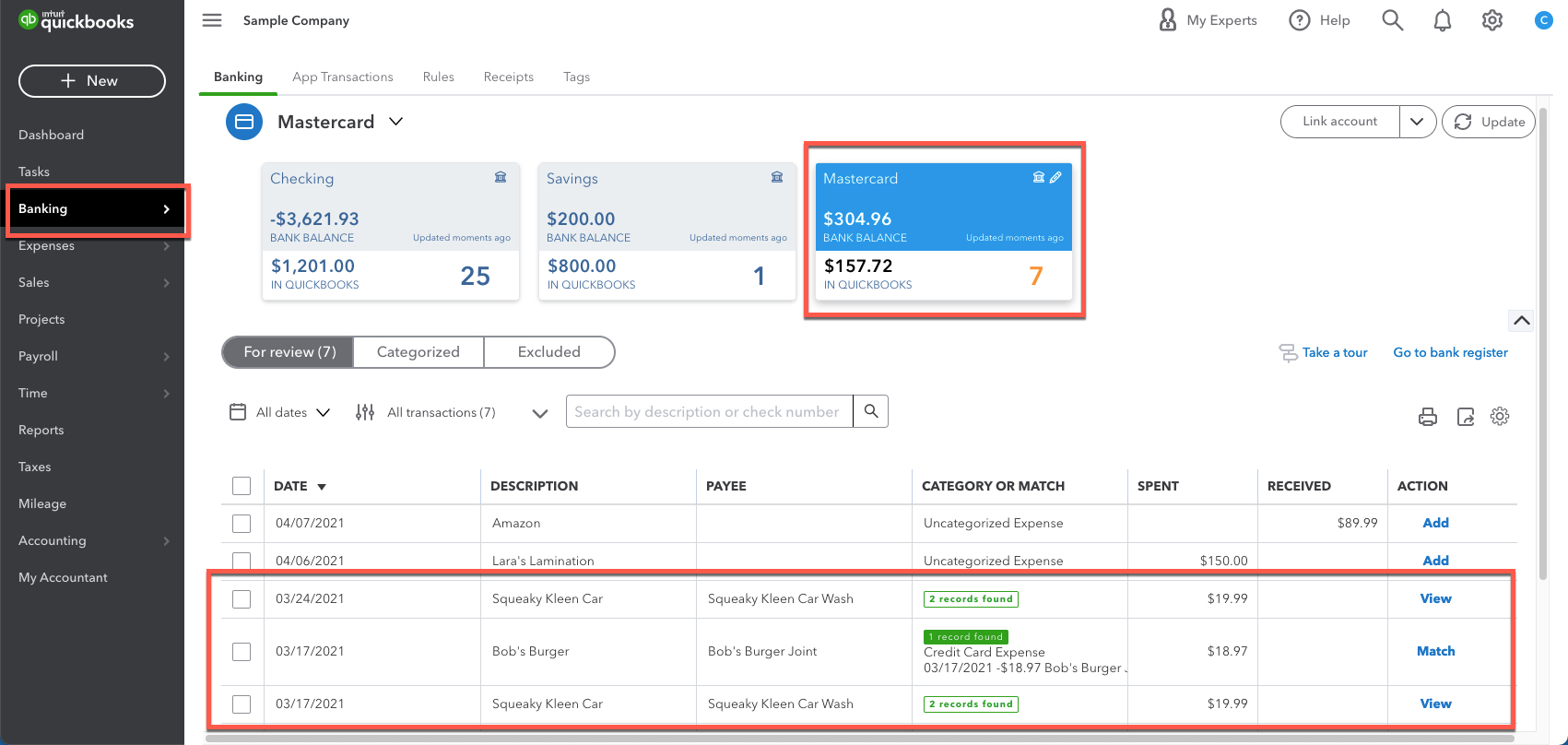
This means deposits, withdrawals, card charges, transfers show up in QBO’s “For Review” tab ready for action. Intuit+1
Bank Rules
Bank rules are a way to automate how transactions from the bank feed get categorised, matched, or added. In QBO you create conditions (e.g., “Description contains ‘Rent’”, or “Amount equals 5000”) and specify an action (e.g., “Auto-categorise to Rent Expense”, “Auto-post”). From Intuit help:
“You can create rules that automatically categorise transactions for you. … The more QBO uses the bank rules you create, the better it gets at categorising.” QuickBooks+1
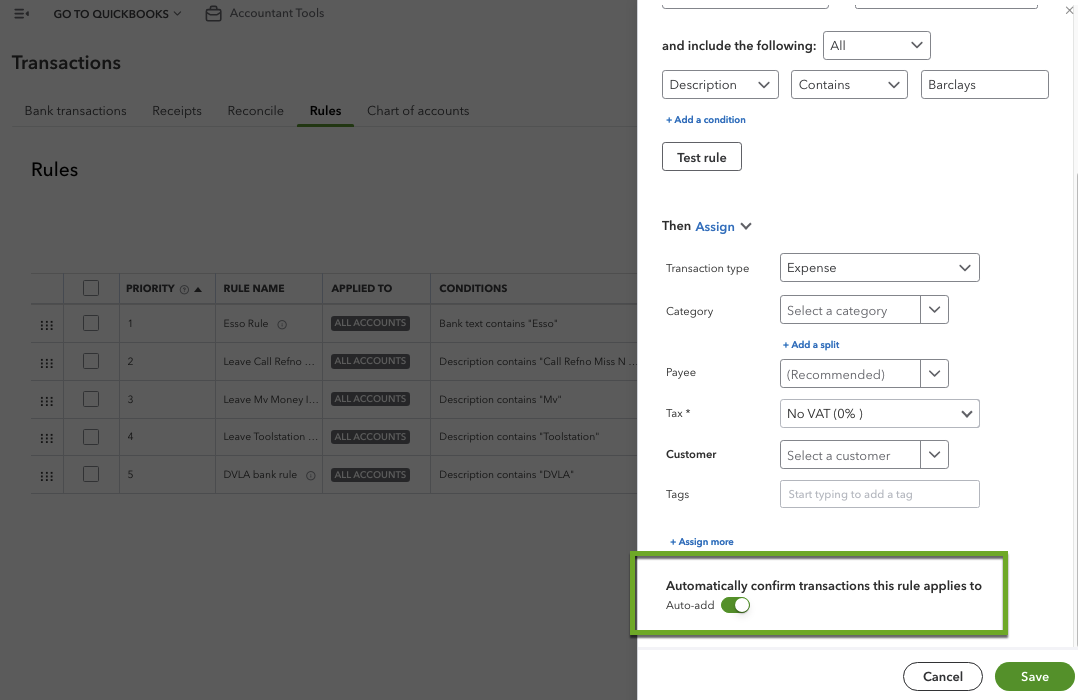
You can even enable Auto-add so that once a transaction meets the rule, it’s added into the books without manual review. QuickBooks+1
Why this matters: The Pain Points
Pain Point 1: Manual entry and backlog builds
Many organisations still rely on manual entry-or-upload of bank statements, spending hours each month just keying transactions. This causes delays, errors, and puts strain on finance / People Ops teams.
Pain Point 2: Finance closes and reporting lag
If bookkeeping isn’t up-to-date, month-end closes are delayed. Decision-makers don’t have real-time visibility.
Pain Point 3: Reconciliation headaches and mis-matches
Without automation, matching bank transactions to your records becomes tedious. Duplicate entries, unmatched transfers, missing vendors show up. For example, a recent article noted:
“Always review matched transactions before accepting them. … Use bank rules to automate categorisation whenever possible.” Redmond Accounting Inc+1
Pain Point 4: PeopleOps impact, payroll, benefits, employee reimbursements
In many companies, PeopleOps touches finance: expense reimbursements, benefits deductions, payroll feeds. If the bookkeeping is lagging or inconsistent, it creates mis-alignment between HR/PeopleOps and finance.
How Bank Feeds + Rules turn QBO into an “Always-On” Bookkeeper
Here’s how you can architect QBO so that it works continuously with minimal manual intervention.
Step 1: Connect your bank/credit accounts to QBO
– In QBO go to Transactions → Banking → Link Account. Intuit+1
– Choose how far back to import (tip: start from day after your last reconciliation to avoid backlog) accountants.sva.com
Outcome: Transaction data flows automatically into QBO.
Step 2: Review and match transactions
Once the feeds begin, transactions appear under “For Review”. QBO suggests matches (if there’s a transaction already in the register). From Intuit:
“Select Categorize or Match … Review the transactions from the Match suggestion column, then select it to get more info.” QuickBooks
Tip: Regular review ensures nothing is missed and duplicates are excluded. firmofthefuture.com
Step 3: Create Bank Rules
Go to Settings → Rules (or from a transaction “Create rule”). Set:
- What kind of transactions it applies to (Money in / Money out)
- Which bank account(s)
- Conditions (Description / Bank text / Amount)
- Action (Category, Payee, Tax Code, etc) QuickBooks+1
Example: Every month your office wifi bill shows “ABC Telecom 4500”. Rule: If description contains “ABC Telecom” then category = Utilities Internet, payee = ABC Telecom.
Another example (from Intuit blog): Fuel purchases “Shell”, “Caltex” across several branch names → rule sets Supplier = “Fuel Various”, Account = Motor Vehicle Fuel. QuickBooks
Step 4: Enable Auto-Add (carefully!)
Once you’re confident the rule works correctly, enable Auto-add (or “Automatically confirm transactions this rule applies to”). From Intuit help:
After you create an auto-add rule, any transactions on the Pending tab that meet the conditions are automatically added. QuickBooks
This means little to no manual review needed for those transactions.
Step 5: Monitor, review, refine
Even with automation, periodic review is key:
– Check rules to ensure they still apply (vendors change names, amounts shift)
– Look for unmatched transactions or excluded duplicates Redmond Accounting Inc+1
– Reorder rule priority if one is overriding another unexpectedly. QuickBooks
Outcome: Your bookkeeping runs in near real-time, reconciliation becomes easier, data is more accurate.
Step 6: Reconcile and generate insights
Automated categorisation means when you go to reconcile, many transactions are already matched and categorised. That accelerates month-end close, gives you trustworthy data to share with leadership or PeopleOps.
From SVA’s article:
“Bank feeds and auto-categorisation … significantly reduce bookkeeping time and improve transaction accuracy.” accountants.sva.com
Real-World Scenario: PeopleOps & Finance partnership
Scenario: Employee reimbursements and benefits
Your company uses QBO for accounting, and you (PeopleOps) handle monthly employee reimbursements (travel, meals) and benefits contributions (health-insurance premium, etc). Suppose these show up each month in the bank account as “XpressPay Reimbursements” and “HealthCorp Premium”.
Here’s how you apply bank feeds + rules:
- Connect the company bank account that handles reimbursements and benefits.
- When reimbursements appear in the feed, create a rule:
- Condition: Description contains “XpressPay Reimbursements”
- Money out → Category = Employee Reimbursements (or a specific expense account)
- Payee = XpressPay
- Tag/Class maybe: PeopleOps
- Auto-add = enabled once tested
- For the health-insurance premium:
- Description contains “HealthCorp Premium”
- Money out → Category = Employee Benefits Health Insurance
- Payee = HealthCorp
- Auto-add = enabled
- Once set, every month when those transactions hit the bank feed, QBO automatically categorises them. Your finance team doesn’t need to manually intervene.
- PeopleOps now has real-time visibility on how much the company is spending on reimbursements + benefits, and the finance team has accurate categorisation for their reporting.
Scenario: Subscription software expense
Your company pays a monthly SaaS tool (e.g., “ZoomPro Billing”) automatically from a bank account. That shows up every month at ~₹ 25,000. You create a rule: Description contains “ZoomPro”, Money out → Category = Software Subscriptions. Auto-add = yes.
Result: Repetitive expense falls into place without manual work.
Tips & Best Practices
- Start small: Choose 2-3 consistent recurring transactions (rent, internet, subscription) and set up rules. Once confidence builds, extend. This is recommended in Intuit’s guidance. QuickBooks+1
- Use “Contains” rather than “Is exactly” when defining conditions, bank descriptions vary. Beyond Balanced Books
- Keep an eye on rule priority: If two rules overlap, the one listed higher wins. Reorder as needed. QuickBooks
- Review excluded transactions; they may hide something you should process. But use exclude carefully. firmofthefuture.com
- Have your PeopleOps and Finance teams align on account-categories, payees, tags/classes. This ensures consistent mapping and reporting.
- For companies with multiple bank accounts, consider whether rules apply to “All bank accounts” or specific ones.
- Keep reconciliation in mind: Even with automation, monthly reconciliation is crucial for accuracy.
- Regularly revisit your rule list; vendors change names, you may have mergers, so older rules might not capture new patterns.
- Enable audit or change log for rules so you track who made what change and when (especially in bigger organisations).
PeopleOps-Specific Benefits
- Faster insights: With near real-time bookkeeping, PeopleOps can pull financial data faster, e.g., “What’s our total employee-benefits cost YTD?”
- Reduced manual burden: The PeopleOps team has fewer ad-hoc expense issues because the system already handles classification.
- Better alignment with Finance: Automatically categorised transactions reduce mis-matches between HR/PeopleOps data and accounting records.
- Improved scalability: As the organisation grows, automating feeds + rules means less incremental bookkeeping effort.
- Higher accuracy: Reduced manual entry means fewer human errors, leading to more reliable budgeting, forecasting and PeopleOps analytics.
Potential Pitfalls & How to Avoid Them
- Over-automating too soon: If you set too many rules too early without testing, you might mis-categorise and propagate errors. Solution: Pilot rules first without auto-add, review results, then enable auto-add.
- Rule overlap or conflict: Two rules may apply to the same transaction with different outcomes. Solution: keep rule priorities clear, test edge cases.
- Bank feed connection issues: Some banks may restrict connections or require frequent re-authentication. Solution: Monitor feed status monthly.
- Uncategorized or unmatched transactions still exist: Not everything will fit a rule. Solution: Keep a process for manual review of “other” transactions.
- Reconciliation drift: Even automated transactions need reconciliation. Solution: Monthly check-in remains essential.
Summary
For PeopleOps professionals and finance partners alike, combining QBO’s bank feeds with bank rules transforms bookkeeping from a monthly slog into a nearly continuous, automated process. It reduces manual work, increases accuracy, and unlocks real-time insights, enabling you to position yourselves not just as transactional support but strategic partners.
By following the steps above, you can turn QuickBooks Online into an always-on bookkeeper: transactions flow in, rules categorise, you review exceptions, and your team focuses on what really matters: people, strategy, growth.
Leave a Reply