
Introduction
In today’s fast-moving environment, organisations must plan and monitor job-based budgets (projects, campaigns, hiring initiatives) more precisely. For PeopleOps teams, this means converting headcount, contractor cost, tools/licenses, training & onboarding cost into budget line-items, then tracking actual spend vs. budget.
Using QuickBooks Online (QBO) allows you to bulk-import job budgets rather than manually entering each account and month. This drastically saves time, reduces errors, and improves governance. This article will walk you through how to:
- Create job budget templates (in Excel/CSV) aligned to your Chart of Accounts and job structure,
- Map those templates for bulk import into QBO,
- Import them and run reports (e.g., Budget vs Actuals) so your PeopleOps and finance teams remain aligned.
We’ll use real-world scenarios (e.g., hiring 50 engineers, on-boarding 2 offices, 3 vendor licenses) and highlight common pain-points and how PeopleOps can help.
Why Job Budget Templates matter for PeopleOps
Pain Points
- Manual entry is slow and error-prone – When every hiring job, training cohort or office setup is treated as a budget line, manually entering into QBO each month/account is labour-intensive.
- Lack of standardisation – Without a standard template, each budget owner uses their own format (Google Sheet, Excel, free-text) resulting in inconsistent data, missing accounts, and reconciliation headaches.
- Poor visibility of job vs actual – Without integrating job-budget data with your accounting system, PeopleOps cannot quickly answer: “How much have we spent on hiring this region vs budget?”
- Lack of scalability – Organisations ramping up (multiple jobs open, multiple cost centres) cannot sustain manual budgeting processes.
How PeopleOps can help
- Design a standard job budget template (Excel) that aligns with your Chart of Accounts and cost-categories (headcount cost, contractor cost, software/licenses, training, travel).
- Set up clear naming conventions (e.g., Job Code, Region, Department) so each budget line can be traced to a job or cost centre.
- Bulk-import into QBO so that finance sees job budgets alongside other P&L items, enabling easier Budget vs Actuals reporting.
- Ensure PeopleOps and finance commit to a quarterly / monthly review cadence, aligning budgeted vs actual spend and driving corrective actions (e.g., freeze new roles, renegotiate vendor cost).
Step-by-Step Guide: Create the Budget Template
1. Define your job cost-categories
For example, for a new engineering hub in Ahmedabad:
- Headcount cost (salaries & benefits)
- Contractor cost (outsourced development)
- Software & licences (developer tools, EC2, Azure)
- Training & certification (Udemy, AWS exams)
- Travel & office setup (visa, relocation, furniture)
Map each cost-category to your existing Chart of Accounts in QBO. If any account doesn’t exist, coordinate with finance to add it before importing. (Important: adding accounts after download may break import mapping.)
2. Design the Excel/CSV template
- Use one row per cost category * per month*.
- Columns might include: Job Code, Department, Region, Account Name or Account Number, January Budget, February Budget, … through December Budget.
- Include columns for Year, Budget Name, Cost Type (optional: e.g., Fixed vs Variable).
- Do not add extra rows or columns from the template that QBO expects (see section below).
3. Download the official QBO budget template
In QBO (Plus or Advanced plans) you can:
- Go to Settings ⚙ → Budgeting → Import budget. QuickBooks+2QuickBooks+2
- Select the fiscal year, choose format (Consolidated or Subdivided) and download the sample Excel/CSV template. QuickBooks+1
This template aligns with your Chart of Accounts and fiscal year-months, and ensures compatibility during import.
4. Populate the template
- For each job (say “ENG-AHM-2026” for Ahmedabad engineering hub), fill in the budget amounts per cost-category and per month.
- If you’re subdividing by Location or Class (job code, department) you can use the Subdivided budget option (see next section). Firm of the Future+1
- Validate totals: ensure your sum of monthly values equals the annual budget for that job.
- Save the file in either .xlsx or .csv as per your download format.
Placeholder for image
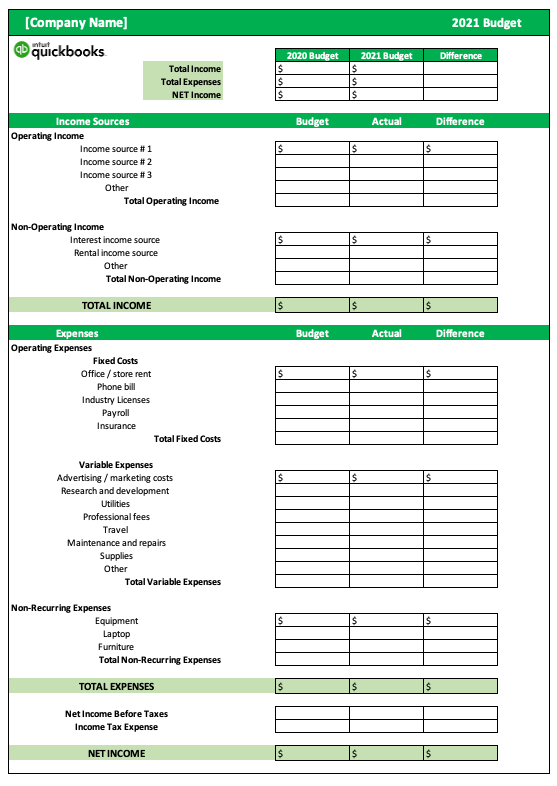
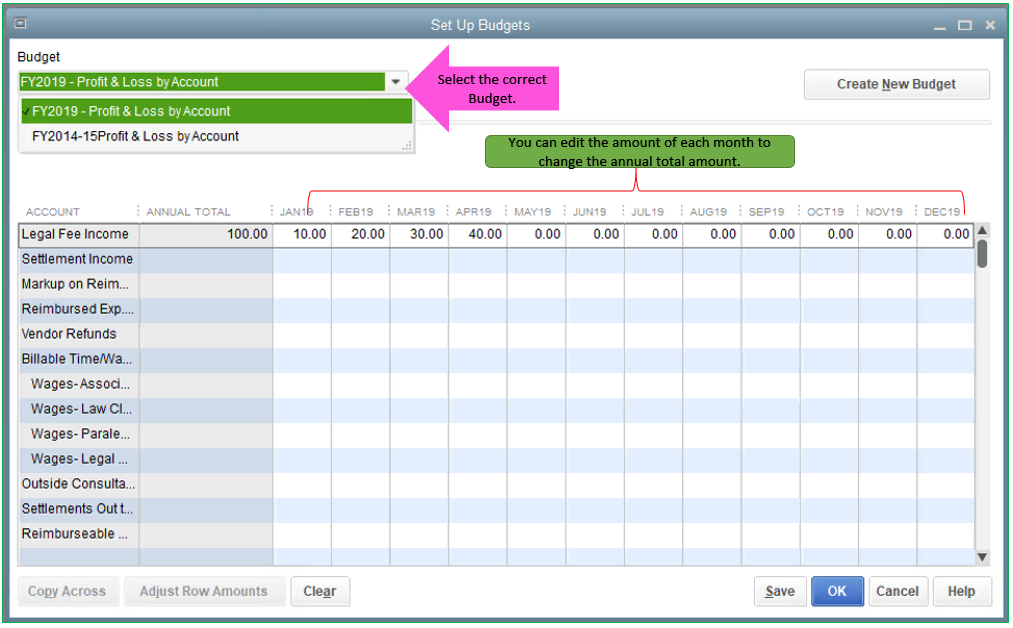
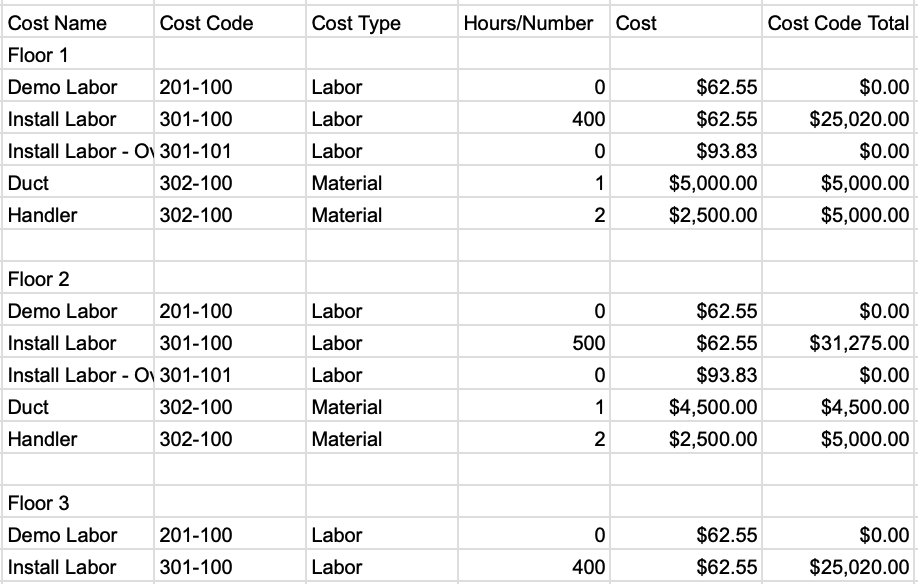
Image description: Left: Excel budget template example showing rows per cost-category and monthly columns. Middle: Screenshot of QuickBooks Online budget import screen. Right: PeopleOps team reviewing job cost categories and budget lines.
Step-by-Step Guide: Bulk-Import into QuickBooks Online
1. Pre-import checklist
- Confirm the first month of your fiscal year in QBO settings is correct. QuickBooks+1
- Ensure all accounts used in the template exist in your Chart of Accounts; if not, add them beforehand.
- If you’re using subdivided budget (by Location/Class/Customer) ensure you’ve enabled those entities (e.g., Locations or Classes) in QBO settings. Firm of the Future+1
- Double-check that no extra rows/columns have been added in the template – doing so can trigger import errors. QuickBooks+1
2. Initiate the import
- Navigate to Settings ⚙ → Budgeting (or Gear → Budgeting) in QBO.
- Choose Import budget → select the fiscal year → choose format (Consolidated or Subdivided) → click Next. QuickBooks+1
- Upload your prepared Excel/CSV file.
- Follow the on-screen steps: map any fields if required, select Upload.
3. Post-upload review
- After upload, view the budget in QBO and verify that each cost category and each month has the correct value. Dancing Numbers+1
- If using Subdivided budgets, verify each subdivision (e.g., each job code) is present under its class/location.
- Edit the budget title if required, then Save and close.
4. Run Budget vs Actuals report
- Once budgets are in place, go to Reports → Budget vs Actuals (or Budget Overview) and select your newly imported budget. QuickBooks+1
- Review variances: cost categories or job codes where actual spend is higher/lower than budget.
- PeopleOps + Finance can set review triggers (e.g., > 10% variance → trigger meeting) to maintain control.
Placeholder for image


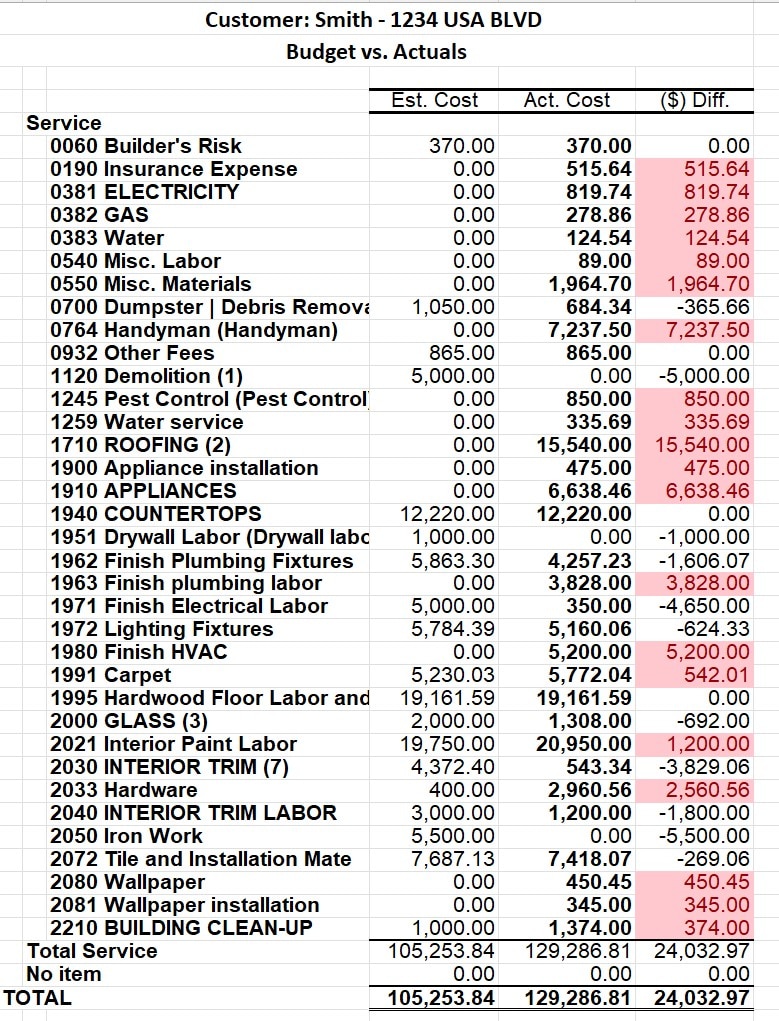
Image descriptions: Screenshot of QBO “Import budget” step, Budget vs Actuals report with job budget variance coloured, PeopleOps & finance team in meeting reviewing job-budget variances.
Real-World Scenario: PeopleOps Use Case
Company: TechScale Pvt Ltd (India)
Project/Job: Opening a new engineering hub in Ahmedabad (Job Code: ENG-AHM-2026)
Budget: ₹15 crore for FY2026
Cost-categories broken down:
- Headcount cost: ₹9 crore
- Contractor cost: ₹2 crore
- Software/licenses: ₹1 crore
- Training/certification: ₹50 lakh
- Travel & office setup: ₹2.5 crore
Steps taken:
- PeopleOps designed the Excel budget template aligned with Chart of Accounts and included Job Code as an extra column.
- They downloaded the QBO budget template, populated values month-by-month (e.g., headcount cost ramping July–Dec, travel/office capex early months) and saved it.
- Finance team ensured all accounts existed, fiscal year start set to April.
- PeopleOps uploaded the template as a Subdivided budget by Job Code/Class so each job appears separately in QBO.
- After upload, they ran a Budget vs Actuals report monthly and added a variance dashboard in their PeopleOps control-room.
- By October, actual travel & office setup cost was already 40% of budget but hiring was only at 20% of plan → trigger: freeze new travel until Q1 next year.
Outcome: PeopleOps and finance had aligned visibility, the hub opened on schedule, and overspend risks were flagged early.
Best Practices & Tips for PeopleOps
- Naming conventions matter: Use consistent Job Codes (e.g., “ENG-AHM-2026”, “SALES-US-2026”) so budgeting, tracking and reporting tie back to cost centre or initiative.
- Split fixed vs variable costs: In your template, label cost-categories accordingly so you can analyse savings potential (e.g., freeze contractors vs headcount).
- Use Subdivided budgets when you have multiple jobs/cost centres: This enables you to filter by class, location, or job in QBO. Firm of the Future+1
- Archive old budgets: Don’t leave outdated budgets active year after year; duplicate and archive so your dashboard remains clean. QuickBooks
- Schedule regular reviews: Monthly or quarterly reviews ensure the budget remains a living document, not a static spreadsheet.
- Train your PeopleOps & finance teams: Make sure both teams understand the template structure, import rules, and reporting flows.
- Keep a version history: If multiple jobs or revisions are frequent, maintain version control of your budgets (e.g., “ENG-AHM-2026_v1.xlsx”, “_v2.xlsx”) so changes are auditable.
Common Challenges & How to Overcome Them
| Challenge | Solution |
|---|---|
| Import fails due to wrong format (extra columns/rows) | Always download fresh template from QBO and don’t add new columns/rows. QuickBooks+1 |
| Accounts missing in Chart of Accounts | Pre-audit your accounts list and coordinate with finance to add missing ones. |
| Using Classes/Locations but not enabled in QBO | In QBO settings enable Locations or Classes before importing. |
| Actuals showing zero vs budget | Ensure every budget account has corresponding actual transactions mapped in QBO Cost centre alignment is needed. |
| Too many jobs/budgets to manage | Use Subdivided budgets and dashboards; archive old jobs; automate alerts for variances. |
Wrap-Up
For PeopleOps teams looking to scale operations and maintain strong cost governance, creating job budget templates and performing bulk import into QuickBooks Online is a powerful approach. It shifts budgeting from manual, error-prone spreadsheets to structured, integrated workflows where PeopleOps and Finance speak the same language.
By following the steps above, aligning cost categories, using the official QBO template, importing correctly, and setting up reports/alerts you’ll ensure your job-based budgets are visible, monitored and actionable. Your PeopleOps team becomes not just a cost centre, but a strategic partner in operational planning and fiscal discipline.
Call to Action
If you haven’t yet created your job-budget template or bulk-imported into QBO:
- Download the sample budget template from QuickBooks.
- Align your cost categories & Chart of Accounts.
- Populate your job budgets for the next 12 months.
- Upload into QBO and set up your first Budget vs Actuals report.
- Schedule your monthly review meeting with Finance.
Need a ready-to-use Excel template tailored for PeopleOps job budgets? I can create one for you. Let me know your cost-category list and preferred columns and I’ll build it.
Leave a Reply