
Introduction
In today’s fast-moving business environment, keeping track of costs isn’t just about month-end reviews; it’s about real-time visibility and proactive alerts. For many organisations using QuickBooks Online (QBO) to manage their accounting, one of the frequent pain points is overspending or cost-overruns: when actual expenses exceed budgeted amounts, or burn through a budget faster than anticipated, the consequences ripple through operations, profitability, and PeopleOps decisions.
This article will walk you through how your PeopleOps or financial systems team can build alerts for cost overruns using QBO data, combining email notifications, webhooks, and automated workflows. We’ll explore the why, the how, real-world scenarios, and how PeopleOps can support budgeting, governance and cost-awareness across teams.
Why Cost Overrun Alerts Matter
Before diving into implementation, let’s frame the problem and its business / PeopleOps implications.
The pain points
- Delayed insight: Often, costs are tracked monthly or weekly. By the time you spot an overrun, damage is done. PeopleOps may only hear “budget exceeded” after teams have already committed resources.
- Lack of real-time triggering: Manual reviews, Excel exports, or static budget reports in QBO don’t trigger an alert when a threshold is crossed. QBO’s native budget functionality doesn’t provide automatic push notifications for over-budget events. Coefficient+2Coefficient+2
- Misalignment between teams: PeopleOps may own headcount, outsourcing, vendor costs, perks, etc., but finance owns the ledger. Without automated alerts, misalignment happens and people decisions inadvertently drive cost overruns.
- Scalability challenge: As companies scale (multiple departments, geographies, projects), monitoring each budget manually becomes untenable. An automated alert system supports growth.
- Risk of surprise costs: Unplanned overtime, vendor cost escalations, and rapid project burn can erode margins. PeopleOps needs to partner with Finance to spot trends early.
The upside of alerting
- Proactive governance: Instead of reacting, you set thresholds up-front (e.g., 80% of budget used) and get notified when you approach or exceed them.
- Better decision-making: When team leads get alerts, they can act (reallocate, pause spend, renegotiate) rather than discover issues post-fact.
- PeopleOps alignment: Knowing which cost centres (e.g., headcount vs. contractors vs. travel) are burning helps align PeopleOps planning with finance real-time.
- Operational agility: You can integrate alerts into workflows, email, Slack, webhook to downstream systems (HRIS, project management tool), so cost control becomes part of daily operations.
- Culture of cost-awareness: When teams know that over-budget triggers an alert, spend discipline goes up, PeopleOps can enable that mindset shift.
Overview: Architecture & Technical Approach
Here’s a high-level view of how you can build a cost overrun alert system using QBO, email/webhooks and monitoring logic:

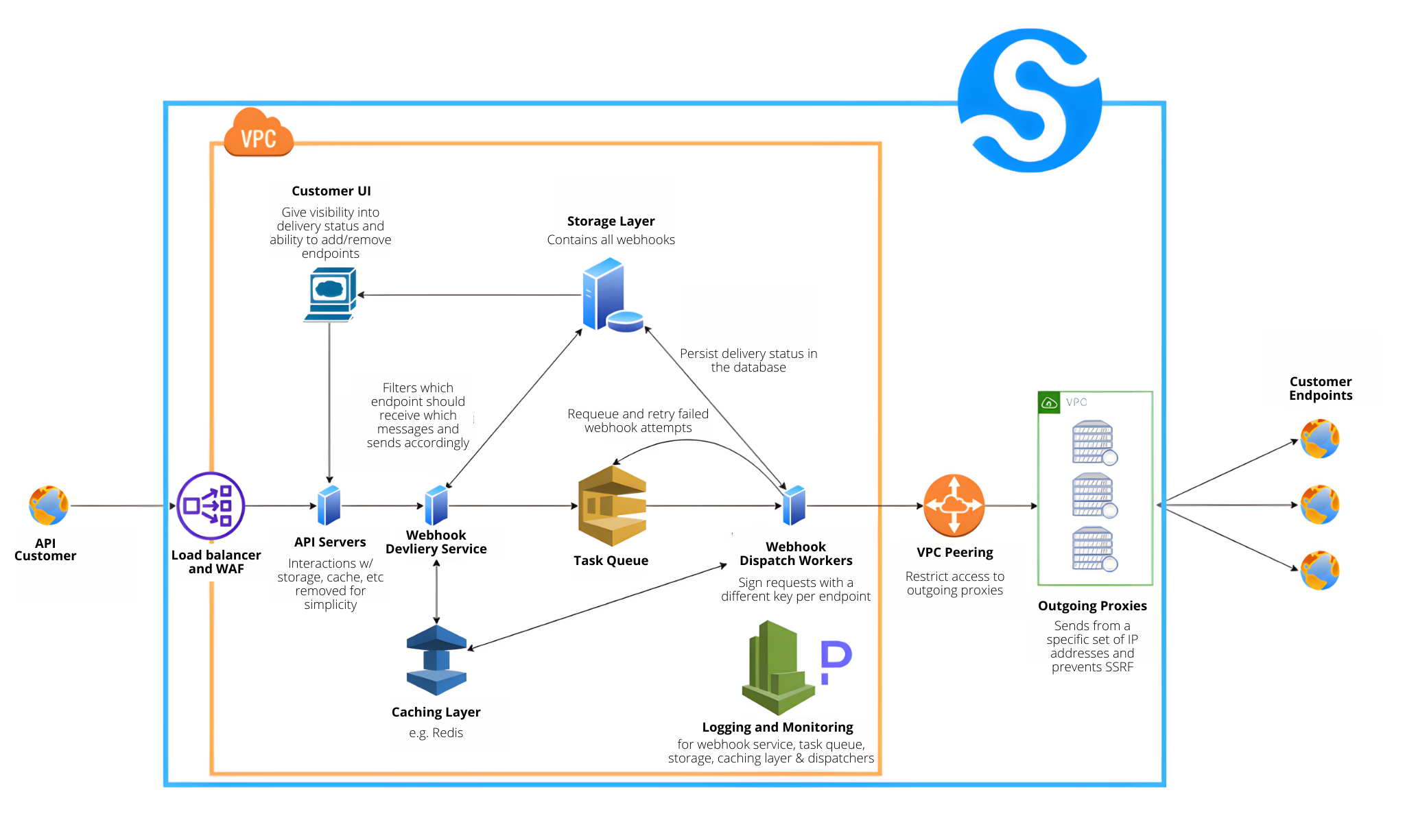
Components:
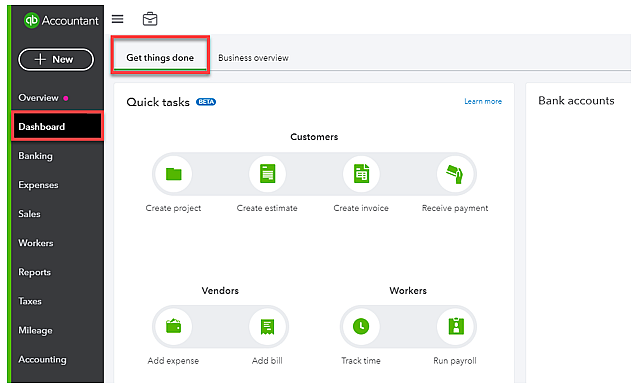
- Data source: QBO transaction data, account balances, budgets, classes/departments.
- Change trigger: Use QBO Webhooks or periodic sync/CDC to detect updates. developer.intuit.com+1
- Alert logic: Compare actual spend vs budget thresholds (for example: 75% used = warning; 100% used = critical).
- Notification channel: Email, Slack, webhook to a downstream system (e.g., HRIS, project management, dashboard).
- PeopleOps interface: Teams get visibility via dashboards, alerts feed PeopleOps + Finance so spend behaviour links to people decisions.
Step-By-Step Implementation
Below is a practical step-by-step roadmap.
1. Define the Budgeting Scope & Alert Criteria
Tasks for PeopleOps + Finance
- Identify cost centres you want to monitor: e.g., headcount (labour), contractors, travel & events, software subscriptions.
- Decide meaningful thresholds: e.g., 60% of budget spent by month mid-way = early warning; 90% = action required.
- Map budget categories in QBO: ensure you’ve set up accounts, classes/departments, and budgets in QBO. Note: QBO budget alerts are not automatic by default. QuickBooks+1
- Determine alert audience: Team lead, PeopleOps manager, CFO, cost centre owner.
- Define escalation rules: If cost > 100% budget, what happens? Freeze hiring? Investigate vendor contracts? PeopleOps triggers a meeting?
2. Extract Actual Spend Data from QBO
Technical details
- Use the QBO Accounting API (REST) to retrieve transaction data (expenses, bills, vendor payments) relevant to the cost centres. developer.intuit.com+1
- Use classes or departments in QBO to tag cost centres (if you use class tracking this is very helpful).
- Optionally, fetch budgets imported or defined in QBO (some external tools sync budgets; QBO UI alone doesn’t send alerts). e.g., “Budget vs Actual” type reports. knowledge.reachreporting.com
- You can pull data via batch queries to reduce API calls and cost. Intuit Developer Community Blog+1
- Set a sync frequency: hourly or daily, depending on business speed. For real-time alerting, webhooks are better (see next step).
3. Use Webhooks for Real-Time Triggers (Optional but recommended)
- QBO supports webhooks: you subscribe to entity changes (e.g., Bills, Payments, Accounts) in the Intuit Developer portal. Coefficient+1
- Set up an endpoint (HTTPS) to receive POST notifications when relevant entities change. Intuit Developer Community Blog+1
- Use the payload to trigger logic: when a new expense is recorded in a cost centre, recalculate spend vs budget.
- For reliability: respond within 3 seconds to the webhook POST with HTTP 200. Otherwise, QBO will retry with exponential back-off. Intuit Developer Community Blog+1
- Together, webhooks + periodic polling/CDC ensure you never miss an event.
4. Build Alert Logic & Workflow
Pseudo logic:
For each cost centre
  budgetAmount = Budget defined for the period (month/quarter)
  actualSpend = sum of expenses/purchases paid so far
  utilisation = actualSpend / budgetAmount * 100%
  if utilisation >= criticalThreshold (e.g., 100%)
     trigger critical alert workflow
  else if utilisation >= warningThreshold (e.g., 80%)
     trigger warning alert workflow
Implementation suggestions:
- Store budgets and actuals in a simple store (database, Google Sheet, data warehouse) tagged by cost centre.
- Use a scheduler or event trigger (webhook) to run the above logic.
- For emails: Use templated alert messages, include cost centre name, budget amount, actual spend, percent used, link to dashboard/report.
- For webhooks: Push a JSON payload to downstream systems (HRIS, Slack channel, project management tool) so PeopleOps gets the alert in workflow.
5. Notify and Escalate
- Email: Send to cost centre owner + PeopleOps + Finance. Example subject: “Alert: Marketing Travel Budget reached 90% (₹9.0 L of ₹10 L)”.
- Webhook/Slack: Post in #budget-alerts channel: “Team X has exceeded 90% of budget. See details.”
- Dashboard: Show live “Budget vs Actual” charts for PeopleOps/Finance teams.
- Escalation: If critical threshold met, auto-schedule a review meeting (e.g., via Zap/Flow) with PeopleOps/Finance.
6. Review, Iterate & Embed into PeopleOps Governance
- Review alert metrics weekly: How many warnings? How many criticals? Which cost centres repeatedly trigger?
- PeopleOps to partner with cost centre owners to understand root causes: Is overspend due to hiring, contractors, events, unplanned travel?
- Update thresholds as business grows: For high-velocity cost centres, tighter thresholds may make sense.
- Embed alerting into PeopleOps processes: e.g., budget sign-off for new hires, travel approval linked to current budget utilisation.
Real-World Scenarios
Here are two sample scenarios to illustrate how this plays out in practice:
Scenario A: Marketing Department Travel Budget
- Marketing has annual travel budget of ₹12 L. The system monitors spend monthly.
- By mid-year (June) actual travel cost is ₹7.5 L → 62.5% used → above warning threshold of 60%.
- Alert triggers: Email to Head of Marketing and PeopleOps with details.
- Result: Marketing team re-calculates remaining campaigns, delays non-critical travel, switches to virtual events to stay within budget.
Scenario B: Contractor Spend in Product Development
- Product team has quarterly contractor budget ₹8 L. Up to 100% before critical.
- A large external contract bill is logged: actual hits ₹8.1 L (101%). Critical alert fires.
- PeopleOps, along with Finance and Product Lead, convene within hours. Decision: pause new contractor hires, reassign internal resources, renegotiate smaller contract rate for remainder of quarter.
- Root cause: double-booking of two contractors for same scope, lacked coordination.
These scenarios show how PeopleOps can act as the bridge between cost-alerts and human decisions (hiring freeze, vendor renegotiation, resource reallocation).
Why PeopleOps Should Own This Alert Process
- PeopleOps governs many of the cost levers: headcount, contractors, travel, vendor (training/onboarding) costs.
- By partnering with Finance and owning the alert-workflow, PeopleOps embeds cost-governance into people decisions.
- Enables PeopleOps to provide better forecasting, support business leaders with cost awareness, and tie human resource decisions to budget reality.
- Helps in building a culture of accountability: managers know budgets are actively monitored, not just ‘in a spreadsheet’.
- Enhances transparency: regular alerts and dashboards mean no surprises, better alignment with business strategy.
Implementation Tips and Best Practices
- Enable class/department tracking in QBO early. This tagging is critical for cost-centre monitoring.
- Use HTTPS endpoints and secure signature verification for webhooks (verify payloads) to avoid spoofing. Coefficient+1
- Don’t rely solely on polling. Polling (every 15-60 min) is okay, but combining with real-time webhooks gives better coverage. Intuit Developer Community Blog
- Limit your API calls: Use batch queries, only fetch changed entities, and avoid excessive polling which can increase costs. Intuit Developer Community Blog
- Test thoroughly on sandbox environment before production. Ensure your alert logic and escalation workflows behave correctly.
- Define clear ownership: Who receives alerts, who acts, what steps follow. PeopleOps should map these flows.
- Visual dashboards help: After alerting, managers should easily view “Budget vs Actual” by cost centre in a live dashboard.
- Review threshold logic periodically: Business cycles change, cost centres evolve, thresholds that were meaningful last quarter may not be this quarter.
- Record and audit: Keep a log of when alerts fired, who acted, what outcome, supports continuous improvement and accountability.
Potential Challenges & How PeopleOps Can Overcome Them
- Data-tagging inconsistencies: If expenses aren’t tagged correctly (wrong class/department), alerts will be wrong. Solution: PeopleOps drives training and accountability for correct tagging.
- Budget definition gaps: Budget may exist in Excel but not entered in QBO or monitoring system. Solution: PeopleOps ensures budgets are defined in QBO or imported into monitoring system.
- Alert fatigue: Too many alerts → ignored. Solution: Use tiered thresholds (warning vs critical), limit to meaningful events, and align with business impact.
- Delayed transactions: Expense recorded late, leads to stale alerts. Solution: Encourage timely data entry and use near-real-time monitoring.
- Integration complexity: Building webhooks, endpoints, workflows takes development resources. Solution: Prioritise key cost centres first, potentially use no-code tools or platforms for quick wins (see case below).
- Buy-in from cost centre owners: Managers may resist extra monitoring. Solution: PeopleOps frames alerts as enabling, not policing, helping teams stay on track rather than catching mistakes.
Quick Win: No-Code Approach
If your tech team is busy, you can still start small with no-code/low-code methods:
- Use a tool like Coefficient (Google Sheets/Excel add-in) to pull QBO data hourly. Coefficient
- Create formulas comparing actual vs budget and set up sheet notification rules or email triggers when thresholds are crossed.
- Use Zapier or Make to push alerts to Slack or Microsoft Teams when the sheet value passes threshold.
- Once your process proves value, upgrade to full webhook + API-based system.
This approach lets PeopleOps show value quickly, build trust and then scale.
Conclusion
For PeopleOps and Finance teams, building alerts for cost overruns using QBO data is a strategic move. It shifts you from reactive budget reviews to proactive spend governance. With QBO’s API + webhooks + notification workflows, you can deliver real-time visibility into budgets, empower managers, align people decisions with cost reality, and maintain profitability, especially as your organisation scales.
Next steps for your team:
- Select one or two cost centres to pilot alerting (e.g., contractor spend + travel).
- Define budgets and thresholds, ensure tagging is in place in QBO.
- Build either a no-code solution (sheet + add-in + notifications) or plan the webhook/API pathway.
- Run for one quarter, review how many alerts fired, how many actions were taken, refine threshold logic.
- Extend across more cost centres, embed into PeopleOps governance and dashboards.
Once in motion, cost overrun alerts become part of your operational rhythm, not a surprise, but a strategic advantage.
Leave a Reply