
Introduction
For many businesses, especially those running projects, service contracts, or milestone billing, the ability to track work-in-progress (WIP) and project status in real time is critical. But too often, you end up juggling:
- Data in your accounting system (e.g., QuickBooks Online or QBO)
- Spreadsheets that someone manually updates (hours, costs, revenues)
- Static charts in a PowerPoint that are already stale by the time you present them
What if your dashboard could live-update as data changes in QBO and your spreadsheets? You’d get insights like: “Which project is overrunning cost?”, “Which job hasn’t been billed yet?”, “What is our committed cost vs. actual cost?”
In this article we’ll walk through how your PeopleOps / Finance / Project team can build a live WIP dashboard by combining QBO + its Spreadsheet Sync feature, plus Excel or Google Sheets, so you get near-real-time visibility.
Why you need a live WIP dashboard
Pain points
- You don’t have an up-to-date view of WIP: costs have been incurred but billing hasn’t kept up.
- Your data lives in silos: QBO holds financials, spreadsheets hold project tracking, and neither talks to the other.
- Manual reporting: Someone exports data, cleans it, refreshes the slides, hours of work for outdated output.
- Lack of alignment between operations and PeopleOps/Finance: PeopleOps may be tracking resource utilisation and labour, Finance tracks cost and revenue no single view.
- Without visibility you can’t proactively act: you’re always reacting to overruns, late invoices, margin erosion.
Business case
A live WIP dashboard helps you:
- Monitor project profitability as you go (not after close)
- Align resources (people/time) with financial cost and revenue expectations
- Give stakeholders (operations, finance, project owners) a shared source of truth
- Empower your PeopleOps team to highlight capacity issues, cost drift, resource bottlenecks
- Make faster strategic decisions (stop a project early, reallocate resources, adjust billing terms)
What you’ll need (setup & tools)
- A supported QBO subscription: the feature we’ll use (Spreadsheet Sync) is available in QBO Advanced or via an Accountant user. QuickBooks+2QuickBooks+2
- Excel (Office 365 edition) or Google Sheets (depending on your preference) that supports Spreadsheet Sync. QuickBooks+1
- A clear WIP definition in your business context. (For example: Contract value minus invoiced value = WIP; or committed cost + incurred cost minus billed revenue.)
- Project / job tracking elements: project codes, job numbers, cost buckets, revenue recognition dates, etc.
- Discipline in maintaining data: time entries, cost entries, invoices, all must flow into QBO or be captured in the spreadsheet.
Step-by-step: Build the dashboard
1. Define your metrics and structure
Decide which metrics you want displayed on your WIP dashboard. Examples:
- Contract amount (total value)
- Billed to date
- Invoiced but not yet paid
- Cost incurred to date (labour + materials + other direct cost)
- Committed cost (POs, subcontracts issued)
- Projected cost to complete
- WIP (the amount representing work done but not yet billed or recognised)
- Margin (estimated vs actual)
- Resource utilisation (hours by project, percent of budget)
Set up your spreadsheet tab(s) accordingly: a “Project Master” tab with project codes and contract values; a “Cost & Revenue” tab; a “Dashboard” tab with visuals.
2. Connect QBO data via Spreadsheet Sync


- In QBO, go to Settings → Spreadsheet Sync to enable. QuickBooks+1
- In Excel (or Google Sheets, if supported), open the Spreadsheet Sync add-in / tab.
- Sign in with your QBO credentials and select the company. QuickBooks+1
- Choose “Run report” (or select a template) and pick the dataset you need (for example: project revenues, time entries, cost transactions). QuickBooks+1
- Use filters to pull in date ranges, project codes, etc. QuickBooks
- Use “Quick refresh” to refresh the data whenever you open the workbook or on demand. QuickBooks
3. Import other data manually (if needed)
If you have data not in QBO (e.g., hours tracked in a separate tool, or committed costs in a PO system), bring that into your spreadsheet via manual import. Ensure columns align with project codes so you can join/merge.
4. Build formulas / data model
- On your “Cost & Revenue” tab: join QBO data (revenue, invoices, cost transactions) with your manual data (committed cost, hours) by project code.
- Calculate metrics:
- Cost incurred = sum(cost transactions)
- Cost committed = PO value not yet invoiced (manually tracked)
- Revenue billed = invoices issued
- WIP = some business definition such as: (Cost incurred + Committed cost) − Billed revenue
- On your “Dashboard” tab: set up pivot tables or formulas that summarise by project, by status (green/yellow/red), by manager, etc.
- Add visuals: progress bars, colours, gauge charts, etc.
5. Visualise & share
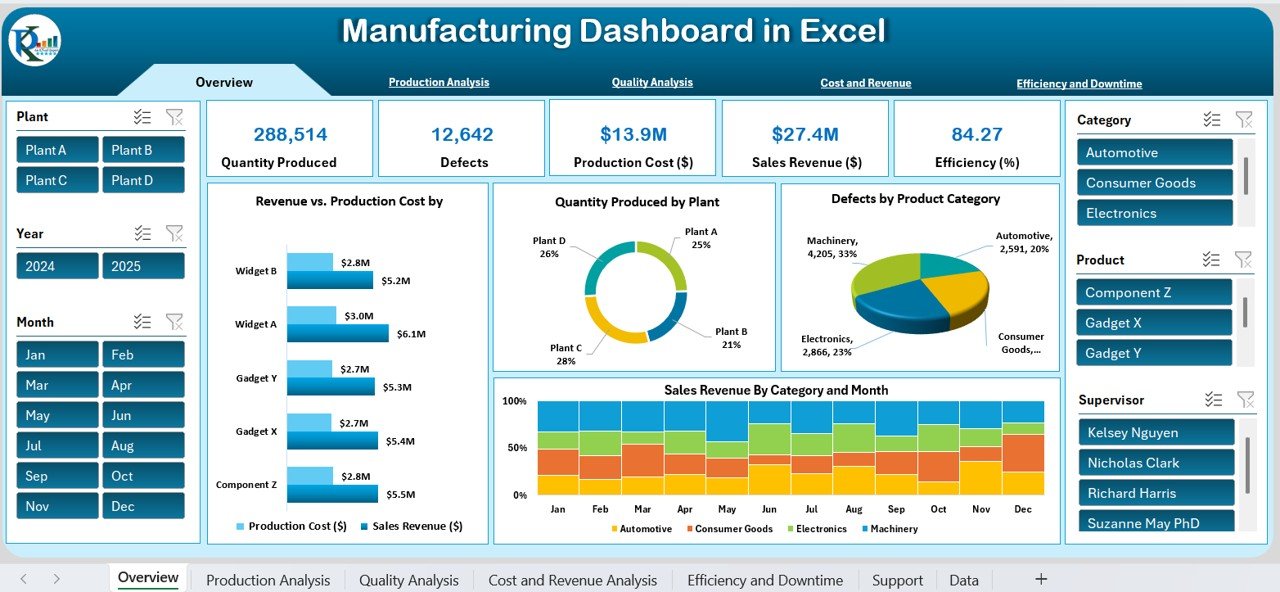
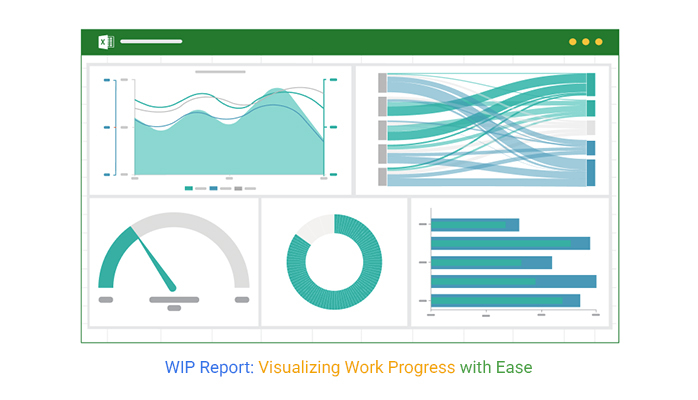

- Create a main dashboard sheet:
- A summary tile showing “Total WIP”, “% Projects over budget”, “Top 5 eye-on projects”
- A table showing each project + contract value + cost incurred + WIP + margin + status indicator (e.g., red if WIP > X%)
- Trend visuals: WIP by month; cost vs revenue over time
- Use simple visuals (traffic lights, red/green indicators) so non-finance leaders can quickly interpret.
- Share the dashboard by either:
- Publishing the workbook to a shared drive / OneDrive / Google Drive, with a scheduled refresh (thanks to Spreadsheet Sync)
- Exporting as PDF snapshots weekly and attaching to your PeopleOps/Finance update.
- Use meeting time to highlight key insights, not read data.
6. Automate refresh and governance
- Encourage a process: e.g., every Monday morning the workbook is refreshed via Spreadsheet Sync, data is validated, dashboard is shared.
- Maintain data hygiene: ensure project codes in QBO match codes in spreadsheets; enforce cost tracking discipline so dashboard reflects reality.
- Assign owners: PeopleOps or Finance should own the dashboard refresh process; project managers should review their project rows weekly.
- Keep it simple and evolving: Start with top 5 projects, then expand. Don’t over-build hundreds of KPIs at once.
Real-world scenario
Scenario: A service company, “TechOps Co”, runs 10 major contracts per year. With growth, the CFO notices that invoicing is lagging behind service delivery, and the PeopleOps Manager sees utilisation dipping. They decide to build a live WIP dashboard using QBO + Spreadsheet Sync.
- They set up project codes in QBO for each contract.
- They enable Spreadsheet Sync and import:
- Revenue/invoices by project
- Cost transactions (labour, outsourced services) by project
- They maintain a small manual table for “Committed cost” (POs issued but not yet invoiced) in the spreadsheet.
- Their dashboard shows:
- Contract 1001: Contract = $500 k, Cost incurred = $200 k, Committed cost = $50 k, Billed revenue = $180 k → WIP = (200 + 50) − 180 = $70 k (alert status)
- Utilisation chart: shows 75% of budgeted hours used but only 60% of revenue billed → potential margin risk
- Project managers review each Monday; PeopleOps flags projects with WIP > 10% of contract and invoicing lag > 30 days for senior leadership.
- Result: In one quarter they reduced late-invoicing by 40%, improved visibility into cost overruns, and the dashboard became a living part of their operations & finance rhythm.
How PeopleOps adds value with this dashboard
As a PeopleOps or hybrid finance/people partner you’re uniquely positioned to drive this forward:
- Data-driven resource planning: Link human resources (hours, utilisation) to cost and revenue metrics, so you can forecast capacity, hire or reallocate ahead of demand.
- Cross-functional facilitation: Bring together finance, project leads, HR to interpret the dashboard and take action not just show numbers.
- Governance & culture: Establish a routine: weekly review, accountability on project leads, corrective actions logged.
- Continuous improvement: Use the dashboard to identify patterns: e.g., projects that always have high committed cost → ask “why?” → process fix.
- Stakeholder credibility: By owning the dashboard and insights, PeopleOps becomes a strategic partner (not just support) to operations and leadership.
Common pitfalls & how to avoid them
- Mismatch in project codes: If the spreadsheet uses codes different from QBO, the join will fail. Solution: enforce consistent naming conventions and validate weekly.
- Lagging data entry: Cost or revenue transactions not entered timely will make the dashboard inaccurate. Solution: define cut-off (e.g., by Friday each week) and hold project managers accountable.
- Over-complex dashboard: Too many metrics, colours, charts confuse users. Solution: start simple (5–8 key metrics) and build only when needed.
- Lack of ownership: If no one is “owner”, refreshes fail, data drifts. Solution: Assign a dashboard administrator and embed refresh into routine.
- Misinterpretation of WIP: WIP calculations vary by business; using a generic formula without alignment may mislead. Solution: Document your definition of WIP, cost, committed cost, revenue recognition and make sure all stakeholders agree.
Summary & call-to-action
Building a live WIP dashboard using QBO + Spreadsheet Sync is a powerful way to bridge the gap between finance and operations, and enable your PeopleOps team to be a strategic driver of business insight. It’s not overly complex, it uses tools you likely already have, and it gives you visibility into projects, cost, resource utilisation and risk before it becomes a crisis.
Action step: On Monday, schedule a 30-minute meeting with your finance partner and your project/ops lead. Agree on:
- Which 3–5 projects you’ll include in the first dashboard.
- Project codes and where cost/revenue data currently sits.
- Timeline: enable Spreadsheet Sync, pull initial data, build skeleton dashboard by end of week.
- Define weekly review time and dashboard owner.
Once you’ve got the first version live share it, get feedback, iterate. Over time expand to all projects, integrate resource data, automate alerts and your PeopleOps team becomes the hub of actionable insight.
Leave a Reply