
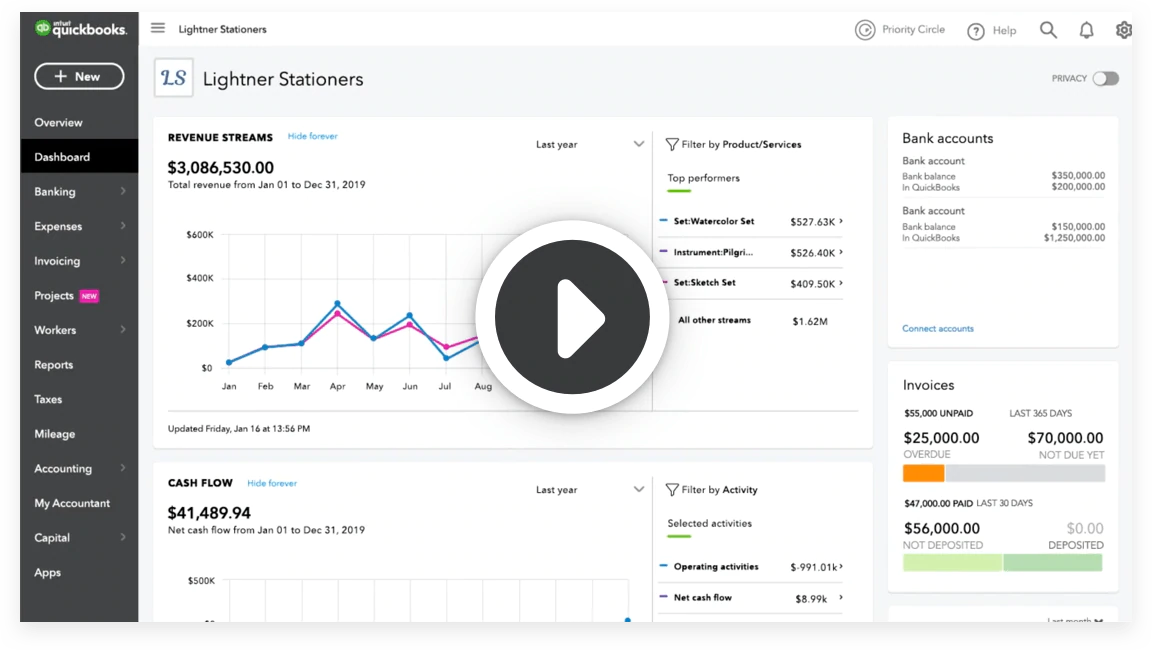


As organisations scale, Finance and People Operations teams often struggle to balance speed with control. Enter the workflow automation capabilities of QuickBooks Online Advanced (QBO Advanced), designed to let you move fast while also putting guardrails in place. This article explores how QBO Advanced supports approvals, alerts, and guardrails, the problems these capabilities solve, and how you (as a PeopleOps or Finance‐Ops stakeholder) can use them to drive efficiency and control.
The challenge: When growth outpaces control
In many growing organisations, a few recurring pain‐points emerge:
- Manual approvals: Invoices, bills, purchase orders all move through email, chat or spreadsheets. There’s no transparent “who approved what when”.
- Hidden bottlenecks: Tasks like invoice review, payment processing or purchase approval sit in inboxes and get forgotten, leading to delays, late payments or over‐spend.
- Compliance & audit risk: As more users are invited into your financial system, rights and permissions aren’t always managed carefully. Who created that transaction? Who approved it? Could someone bypass the review process?
- Disconnected alerts: Without real‐time notifications or reminders, key financial events slip through the cracks, e.g., a large bill goes unapproved, payments lag, or budgets are exceeded without flagging.
- Lack of standardisation: Each department, each person uses their own process. No unified workflow, no consistent guardrail for “what must happen”.
These issues slow down operations, increase errors and risk financial exposure. The good news: QBO Advanced’s workflow engine is purpose‐built to address them.
What QBO Advanced brings: Workflow basics
1. Workflow templates
QBO Advanced provides a rich library of pre‐built workflow templates you can use out of the box. These cover common tasks like invoice reminders, bill approvals, unsent invoice alerts and more. QuickBooks+2Siegel Solutions+2
2. Custom workflow creation
If your process is unique, QBO Advanced allows you to create custom workflows: choose the transaction type (e.g., Bill, Invoice, Purchase Order), define when the workflow triggers (conditions) and what happens (actions). QuickBooks+1
3. Approvals, alerts & tasks
- Approvals: You can require review and approval of certain transactions (for example, bills above a threshold) before next steps or payments happen. QuickBooks
- Alerts/Reminders: The system can send push notifications, emails (to internal users or customers) or tasks when conditions are met. QuickBooks+1
- Guardrails: By setting conditions and required approvals, you build control into processes, ensuring e.g., that no payment is released without a manager’s sign‐off, or that invoices over a certain value go through extra review.
4. Managing & tracking workflows
You can edit, disable, duplicate or delete workflows. QBO shows active workflows, their status, and you can monitor tasks that result from workflows. QuickBooks+1
How this helps PeopleOps & FinanceOps
From a PeopleOps lens, especially when you support Finance or business operations teams, here’s how you benefit:
- Better governance with less friction
By embedding approval steps, you get visibility into who is doing what when. For example: a purchase order over USD 10,000 must be approved by the Head of Procurement and this is enforced by the workflow. - Fewer manual reminders, more automation
Instead of chasing team members to approve invoices or review bills, the system sends alerts automatically. This frees your time and reduces human error. - Faster cycle times
Workflows ensure tasks don’t slip. For example, a notification to the approver goes out as soon as the bill is entered; once approved, payment release can happen seamlessly. This helps with vendor management and cash-flow. - Scalable structure for growth
As you add more users, more transactions, more lines of business, you don’t have to recreate manual processes each time. Workflows scale with you. - Audit readiness & compliance
Everything tracked: who initiated the workflow, when the task was completed, and who approved. This builds an audit trail, useful for internal audit or external compliance reviews.
Real-world scenario: An example in action
Scenario: A mid-sized technology firm is growing rapidly. They’ve begun spending heavily on subcontractors, hardware and software purchases. Vendors are complaining about late payments. The finance team is overwhelmed with purchase requests flying around via chat and spreadsheets. PeopleOps and FinanceOps are jointly tasked with tightening the process.
Solution using QBO Advanced workflows:
- Define a rule: Any bill entered with amount > USD 5,000 triggers a workflow.
- Workflow: When a bill is created, → send a task to the “Manager Procurement” user → require approval within 24 hours.
- If approval is granted, automatically send notification to payment-team to schedule payment. If approval is not granted within 24 hours, send escalation email to Head of Finance.
- Put guardrail: Bills against “Capital Equipment” account must also be reviewed by the CFO, this is added as a second condition in the workflow.
- Dashboard tracking: The finance team monitors pending approvals and tasks daily to ensure none are slipping.
Results:
- Lead-time for approvals dropped from 3 days to 1 day.
- Late payments to vendors fell by 60%.
- Audit‐trail improved: every bill has metadata of who approved it and when.
- PeopleOps and FinanceOps now have a repeatable, scalable process for other types of transactions (e.g., purchase orders, large invoices, expense reimbursements).
Setting Up Approvals, Alerts & Guardrails: Step-by-Step
Here’s a practical check-list for rolling out workflows in QBO Advanced.
A. Define your use-cases
- List the types of transactions you want to control: bills, invoices, purchase orders, payments, expense reimbursements.
- For each, ask: What conditions should trigger a workflow? (e.g., amount threshold, account type, vendor category, department)
- What actions should happen? Approval request, reminder, escalation, payment scheduling, notification.
B. Configure user roles & permissions
- Ensure your user roles reflect the business process: who can create vs who can approve vs who can pay.
- Create custom roles as needed. According to one blog, QBO Advanced allows custom roles with specific permissions, e.g., create invoices but not access full reports. It’s Your Time
- Make sure approvers have the correct mobile/app permissions to receive push notifications if desired.
C. Build the workflow
In QBO Advanced:
- Go to Workflows (or Settings → Manage Workflows) QuickBooks+1
- Choose a template (if suitable) or select + Custom workflow. QuickBooks+1
- Select the record type (e.g., Bill).
- Define the action(s) you want when the conditions are met (send email, create task, send push notification). QuickBooks
- Set the conditions (“When this happens”), e.g., Bill amount > 5000, vendor category = Hardware, department = IT. You can add multiple conditions. QuickBooks+1
- Save and turn on the workflow.
- Communicate to the relevant teams: creators, approvers, finance staff.
D. Monitor & refine
- Review workflow performance: pending tasks, approval cycle times, bottlenecks.
- Archive or disable workflows no longer relevant. QuickBooks+1
- Expand: Once one process is working, roll out similar workflows for other transaction types (e.g., expense reimbursements, purchase orders, vendor onboarding).
- Make changes as your organisation evolves (e.g., thresholds may increase, new departments added).
Common pitfalls & how PeopleOps can help avoid them
Pitfall 1: Too many workflows, too complex
It’s tempting to try to automate everything at once. But this can lead to confusion, user resistance and maintenance burden.
Tip: Start with one or two high-impact workflows (e.g., large bill approvals), get user buy-in, then expand.
Pitfall 2: Poor role/gatekeeper alignment
If roles and permissions aren’t set correctly, users might be skipped or approvals bypassed.
Tip: PeopleOps should map roles clearly, ensure approvers are trained, and update documentation.
Pitfall 3: Thresholds out of sync with business reality
If thresholds are too low, too many approvals trigger and slowdown happens. If too high, you lose control.
Tip: Periodically review threshold settings and match them with current business volumes and risk profile.
Pitfall 4: Ignoring alerts and notifications
A workflow is only effective if users respond to the tasks/notifications it generates. If approvers don’t act, bottlenecks persist.
Tip: Setup escalation steps and dashboards. PeopleOps might liaise with users to ensure they understand the tools and process.
Bringing PeopleOps into the conversation
As someone working at the intersection of people + operations:
- Use workflow roll-out as an opportunity for change management. Communicate why the process matters (speed, control, auditability).
- Collaborate with FinanceOps and IT to ensure training on workflows, push notifications, mobile app usage.
- Drive process documentation: What steps must the team follow when a workflow fires? Who receives tasks? What SLAs apply?
- Monitor adoption and compliance. Are all large bills going through the workflow? Are tasks getting approved on time?
- Advocate for continuous improvement: Use feedback from teams to refine workflows, add new ones, retire outdated ones.
Why PeopleOps + FinanceOps = Stronger together
Traditionally, Finance and People/Ops live in separate silos. Implementing workflows in QBO Advanced is one area where alignment pays dividends:
- PeopleOps brings deep knowledge of roles, permissions, workflows, training & change management.
- FinanceOps brings domain expertise on transactions, payment flows, risk, approvals.
Together, you ensure the process is usable, enforced, and owned by the business.
Conclusion
In a high-growth environment, process gaps become risks. The workflow capabilities of QuickBooks Online Advanced let you automate routine tasks (alerts, reminders), enforce approvals for key transactions, and build guardrails around financial operations. For PeopleOps and FinanceOps teams alike, these features are a powerful enabler, providing speed, control, auditability and scalability.
By starting with one or two key workflows, aligning roles and permissions, monitoring usage, and expanding iteratively, you transform what used to be fragmented and manual into a streamlined, visible and controlled process. If you’re ready to move beyond spreadsheets and email chains, QBO Advanced workflow automation might just be the lever your operations need.
Leave a Reply