
In modern organisations, the Accounts Payable (AP) process isn’t just “paying the bills” anymore. It’s a strategic process that touches procurement, supplier relationships, cash-flow management, internal controls and reporting. For PeopleOps teams that partner with Finance, getting this process right matters, because behind the numbers there are people, operations and productivity.
In this blog we’ll walk through a complete end-to-end AP workflow from when a supplier sends an invoice (or even a PO) via email, through approval, payment, and syncing into QuickBooks. We’ll highlight common pain points, best practices, and how the right set up with QuickBooks (and complementary tools) can make the whole cycle efficient, transparent and scalable.
Why it matters
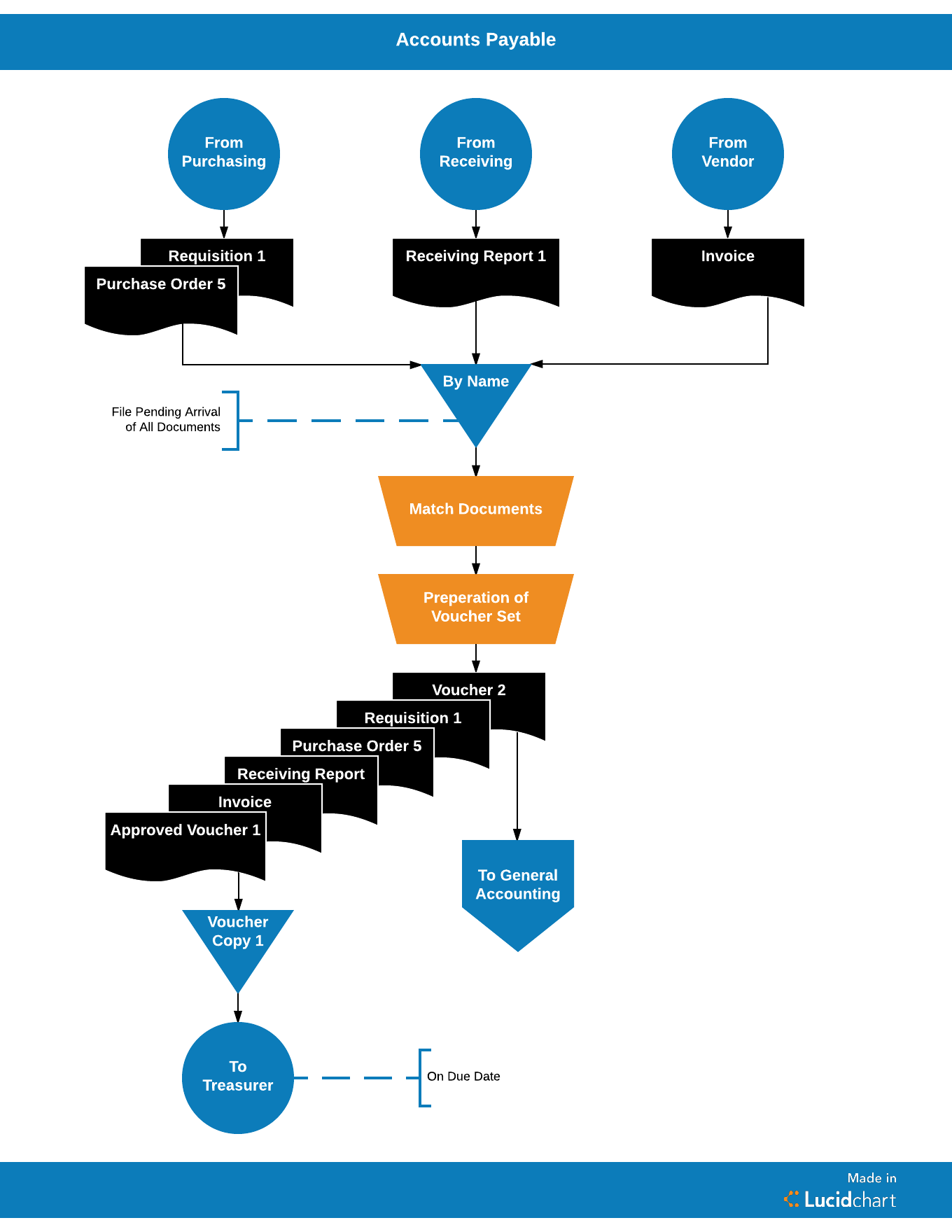
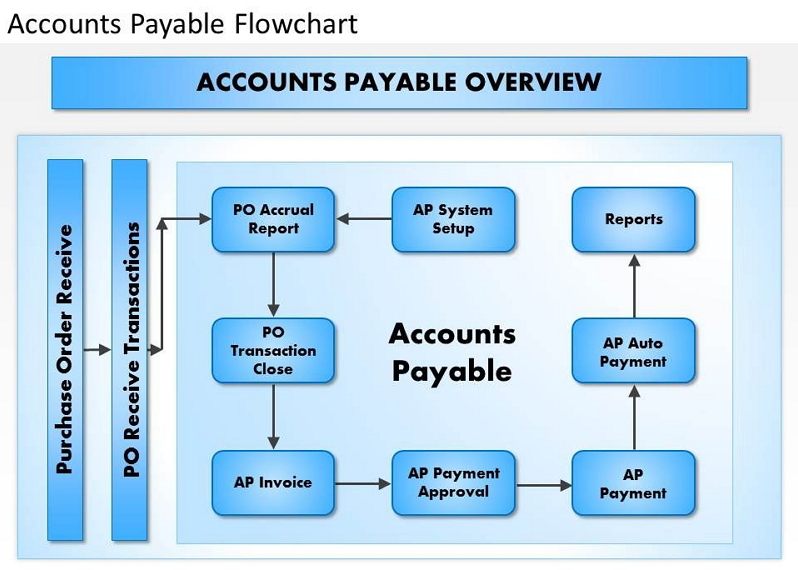
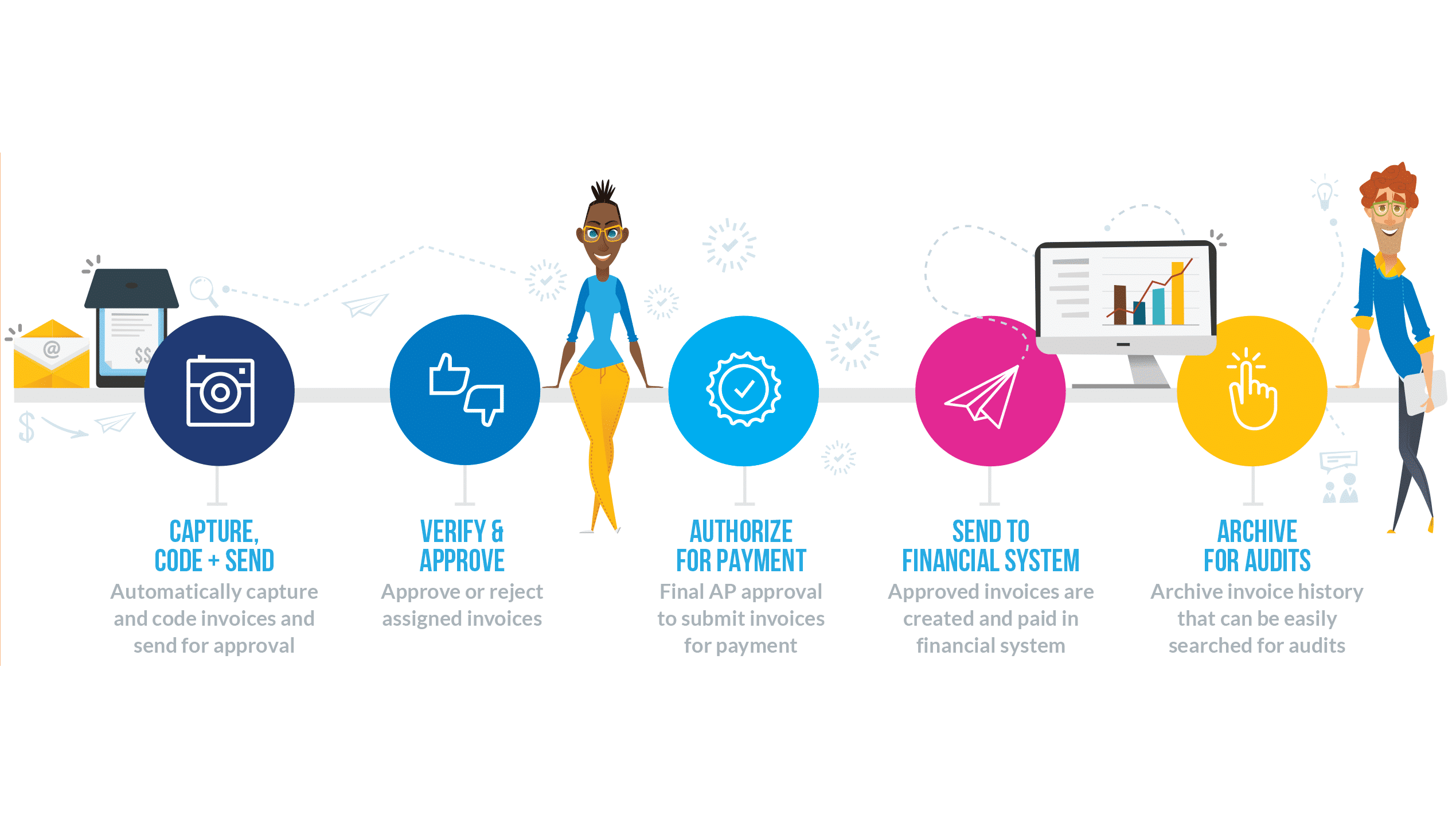
Before we dive into the steps, let’s clarify why you should care about the end-to-end AP process:
- Cash flow & liability visibility: The moment a supplier invoice is received it becomes a liability. If you don’t record it properly, you can underestimate what you owe. QuickBooks+2QuickBooks+2
- Supplier relationships: Late or incorrect payments damage trust. If your team is constantly chasing missing approvals or re-processing invoices, it affects vendor experience.
- Operational efficiency & cost: Manual AP work is error-prone and time consuming. Automation reduces cost per invoice, speeds approvals, and improves audit readiness. Tipalti+1
- PeopleOps relevance: Many AP workflows intersect with operations (receiving goods/services), procurement (POs) and even HR (vendor services, freelancers). Having a clean, visible process supports cross-functional alignment.
The Workflow: Supplier Email → Paid → Synced in QuickBooks
We’ll break this into phases. For each phase: what happens, common pain points, how you can improve with QuickBooks + PeopleOps collaboration.
1. Supplier Email / Invoice Receipt
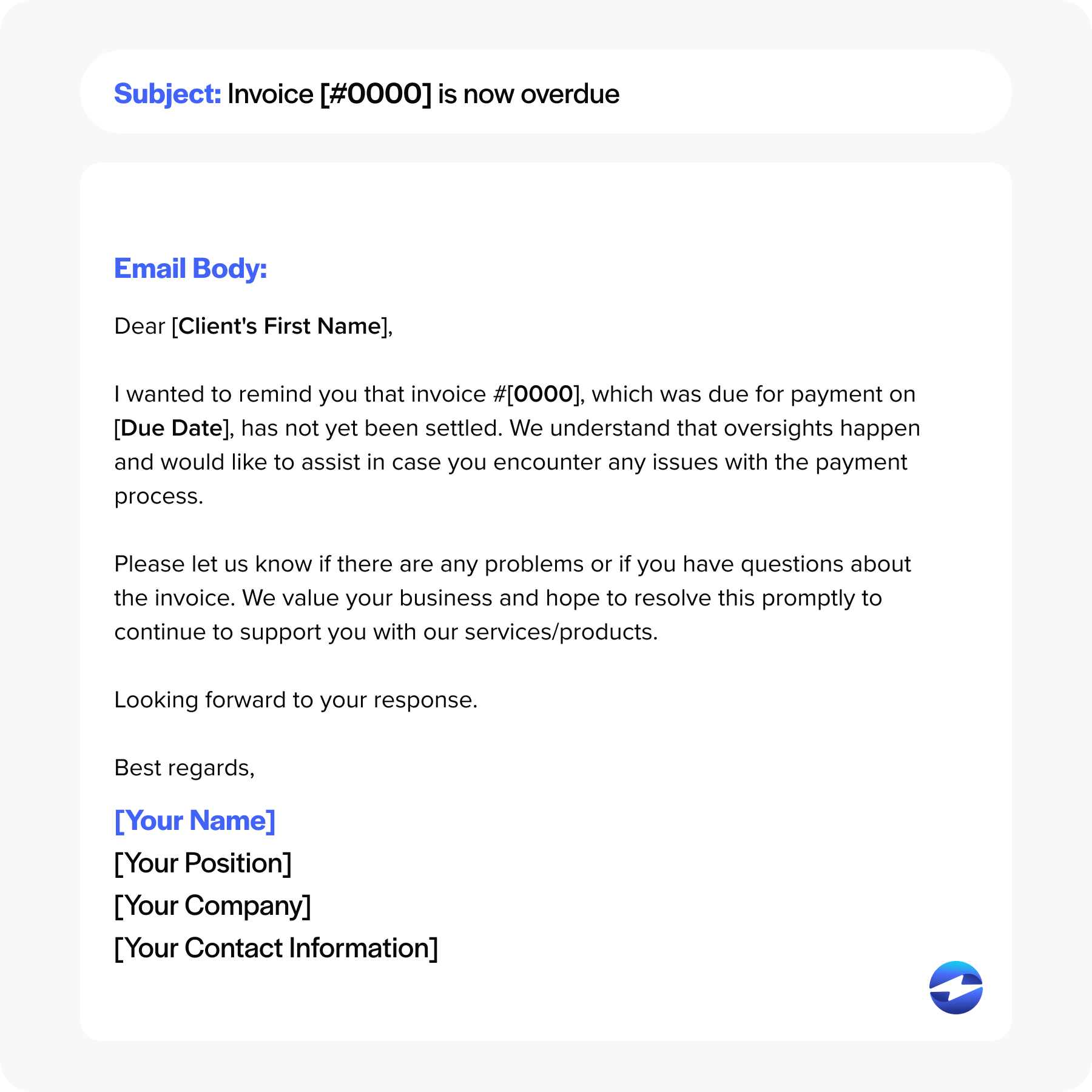
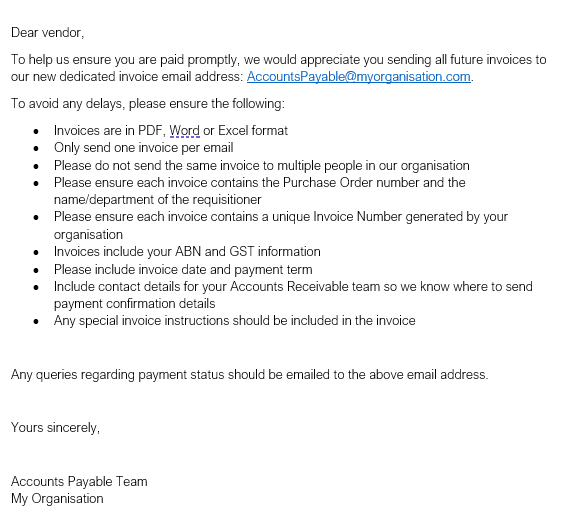

What happens:
- A supplier sends an invoice often via email (PDF, scanned image, sometimes paper) with line items, amounts, due date, payment terms.
- If your organisation uses procurement/POs, it may tie to a previously created Purchase Order.
- The invoice is routed to the AP or finance team for entry into the system.
Pain points you’ll often see:
- Lost invoices: Email gets buried, paper piles up.
- Manual data entry: Someone types vendor name, invoice number, date, amount → prone to typos.
- Lack of standard format: Invoices come in many shapes, making extraction difficult.
- Missing PO/receipt: Without matching goods receipt or PO, approval gets delayed.
How QuickBooks + PeopleOps can help:
- With QuickBooks you can use invoice upload or email-to-bill features: “Upload bill from computer” or email bill to QuickBooks to auto capture data. Stampli+1
- Encourage suppliers to send digital invoices (PDF/email) rather than paper. PeopleOps/Procurement teams can include invoice policy in supplier onboarding.
- Maintain a central “supplier invoices” inbox or folder, flagged/forwarded to the AP team for tracking.
2. Data Entry & Coding in QuickBooks
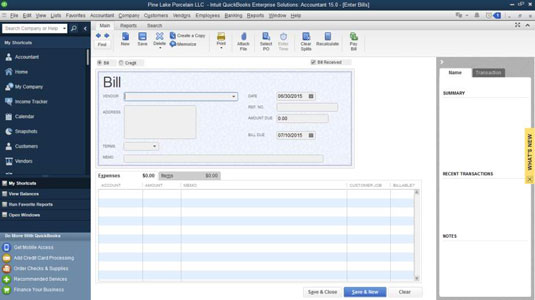


What happens:
- In QuickBooks you enter a Bill (or Expense) for the vendor. You select the vendor (or add new), bill date, due date, payment terms, category (expense account), possibly item details. Stampli
- If a PO exists, you may link the bill to the PO line-items (in QuickBooks Online, you can add the PO) so it closes the PO. Stampli
- Chart of Accounts needs to be structured so you have relevant expense/asset/liability accounts. QuickBooks+1
Pain points:
- Duplicate vendor records, leads to incorrect payments or mis-tracked liabilities.
- Incorrect GL account coding, makes expense tracking, budgeting and reporting hard.
- Missing PO or receipt means unclear where service/goods deliverables are risk of paying for wrong/missing items.
How to improve:
- PeopleOps/Finance collaborate on a clean vendor master list: supplier classification, payment terms (Net 30, Net 60 etc) and vendor code policy. QuickBooks
- Set up vendor onboarding checklist: W-9/Tax info, payment method, invoice sending instructions.
- In QuickBooks, build standard categories or classes (if you segment by cost centre) so bills are coded consistently.
3. Approval Workflow


What happens:
- Once entered (or flagged), the invoice/bill moves for approval: maybe manager sign-off, procurement confirmation that goods/services were received.
- Many organisations use a two- or three-way match: PO vs receipt vs invoice. QuickBooks+1
- In QuickBooks Online Advanced you can set up automatic Bill Approval workflows (by amount/vendor/department). Ramp
Pain points:
- Approvals via email/Excel – no visibility, delays, version-control problems.
- Missing receiving note or PO means approver cannot verify.
- Many manual touches: print, sign, scan, attach – inefficient.
How to improve:
- PeopleOps sets the policy: which bills require approval, threshold amounts, signature levels, link to cost centre.
- In QuickBooks Online Advanced use built-in workflows; if you have Standard version, consider integrating an AP workflow tool that syncs with QuickBooks. Tipalti+1
- Maintain a central repository for approvals/attachments so AP team can review quickly.
4. Payment Processing
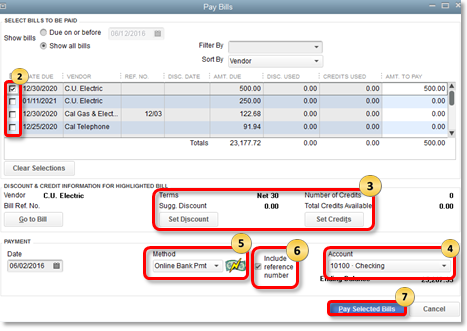

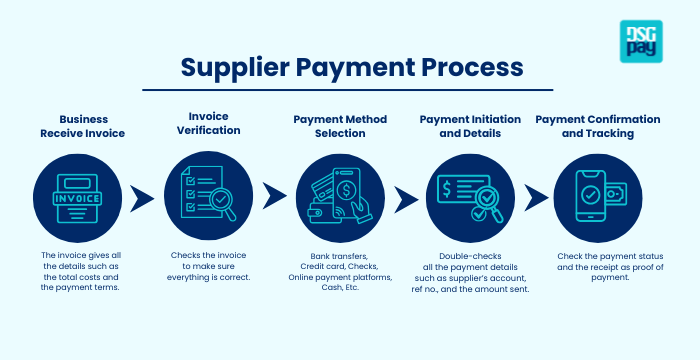
What happens:
- Once approved, you schedule payment based on supplier terms (Net 30, early-payment discount etc).
- Payment may be via cheque, ACH, wire, card. In QuickBooks you record the payment, selecting the bill(s) to pay. Stampli+1
- After payment, the liability (Accounts Payable) is reduced, cash/bank account is reduced.
Pain points:
- Payment made outside system (e.g., direct bank transfer) but not recorded → mismatch.
- Missed discounts or late fees because due date oversight.
- No reconciliation between payment and bill → audit risk.
How to improve:
- Set reminders and dashboard for upcoming due bills; PeopleOps/Finance can review cashed-outflow forecast weekly.
- In QuickBooks run the “Pay Bills” feature and bank feed reconciliation to ensure payment posts correctly.
- If using AP automation tools, they often support one-click payments and auto-recording in QuickBooks. Tipalti
5. Syncing & Reconciliation in QuickBooks


What happens:
- The payment and bill entries are reconciled in QuickBooks: bank feeds show the cleared payment, AP outstanding is reduced.
- You run reports: unpaid bills ageing, upcoming payables, vendor ledger, cash-flow projections. QuickBooks
- Audit trail is maintained: invoice → approval → payment recorded.
Pain points:
- Discrepancies between bank statement and QuickBooks, if a payment wasn’t coded or bill wasn’t entered.
- Old bills outstanding beyond terms → cash-flow surprise.
- Poor reporting: no visibility into where your payables stand, what discounts you missed, or which vendors are overdue.
How to improve:
- PeopleOps and Finance hold a weekly or monthly review: “open bills” aging, upcoming payables, early-payment opportunities.
- In QuickBooks, use vendor reports, Unpaid Bills report, Payables by age to spot bottlenecks.
- Ensure your process has proper documentation/attachments for audit and internal controls.
Real-World Scenario, PeopleOps Implementation
Let’s illustrate with a streamlined example:
Scenario: Your company engages a training vendor for a leadership program. The vendor sends an invoice via email after the training.
- Invoice Received – The vendor emails PDF invoice to a dedicated AP inbox (set up and communicated by PeopleOps during vendor onboarding).
- Data Entry – AP person enters vendor, uploads PDF to QuickBooks, selects the expense account “Training & Development”, enters due date = Net 30.
- Approval Workflow – Because the amount is above the threshold (₹1,00,000) a manager approval is required. QuickBooks Online Advanced’s workflow sends notification to Manager X who clicks “Approve”.
- Payment – On due date, the AP team selects bill in “Pay Bills”, chooses ACH payment, schedules it. They also note an early-payment discount if paid within 10 days (vendor offered 2%).
- Sync & Report – After payment, bank feed shows debit, QuickBooks marks bill as paid. Finance runs “Unpaid Bills Ageing” and sees no overdue items. PeopleOps reviews vendor performance and payment timeliness and feeds findings into vendor review.
Outcome: The invoice moved through reliable workflow, reduced manual error risk, improved visibility, leveraged possible early-payment discount, and supplier felt confident.
Best Practices & PeopleOps Tips
Here are additional tips tailored for PeopleOps/Finance partnership:
- Define and document the full process: e.g., invoice receipt (email or portal) → data entry within 24 hours → PO/receipt match → approval within 48 hours → payment scheduling according to term.
- Vendor onboarding matters: PeopleOps can ensure vendor deliverables (invoice format, email address, PO requirement, payment terms) are captured once and used consistently.
- Use automation where possible: While QuickBooks has built-in automation (invoice upload, bill approval workflows in Advanced) Ramp+1, for more complex AP processes many organisations adopt add-ons or AP automation tools with deep QuickBooks integrations. AvidXchange+1
- Regularly review metrics: e.g., average days payable outstanding (DPO), cost per invoice processed, number of invoices approved late, missed discounts. These help you spot inefficiencies.
- Cross-functional alignment: PeopleOps (for service vendors, freelancers, trainers), Procurement (for goods/services vendor PO), Finance (for payment/reconciliation). Ensuring hand-offs are smooth reduces delays.
- Maintain strong controls: Segregation of duties (data entry vs approval vs payment) helps prevent fraud. Clear audit trail in QuickBooks (invoice attachments, approval logs) is a must. Wikipedia
- Use QuickBooks reporting features: Ageing reports, vendor balance reports, payment history, etc to understand trends and cash outflows.
- Leverage early-payment discounts: If you have good vendor relationships and timely process, you can take advantage of discounts which improves bottom line.
Challenges & How to Address Them
No process is perfect. Here are some common challenges and how to manage them.
| Challenge | Why it arises | Solution |
|---|---|---|
| Manual invoice data entry causing delays/errors | Many invoices come via email or paper | Use invoice upload/email-to-bill features in QuickBooks; standardise invoice submission; consider OCR/automation tool. Tipalti+1 |
| Missing PO or receipt slows approval | Procurement/receiving not integrated with AP | Implement cross-department process: requestor creates PO, goods/services receipt documented, AP only processes when matching achieved. |
| Approvers delay because of unclear roles | No SLA defined, approvals pile up | Set defined workflow, SLAs (e.g., 24-48 h), notifications in QuickBooks Online Advanced or via workflow tool. |
| Payment recorded manually and not synced | Payment via bank transfer but not entered | Use “Pay Bills” in QuickBooks or integrate payment automation; reconcile bank feed weekly. |
| Aging payables and cash-flow surprises | Lack of visibility into upcoming payables | Run weekly or monthly ageing report, forecast cash outflow, share with leadership. |
Summary
The end-to-end AP workflow from “supplier email” to “paid and synced in QuickBooks”—is a critical business process that impacts cash-flow, supplier relationships, operational efficiency and control. For PeopleOps professionals working closely with Finance, understanding this workflow helps you influence process design, governance, vendor onboarding and technology adoption.
By leveraging the strengths of QuickBooks (invoice upload, approval workflows, integration with payment and bank feeds) plus aligning internal processes (vendor setup, PO matching, approval SLAs, reconciliation), you can build an AP process that is efficient, auditable and future-ready.
When suppliers, procurement/operations, AP/Finance and PeopleOps are aligned, your business pays the right invoice to the right vendor at the right time with full visibility, and that matters.
Leave a Reply